Fixed Bundles
Fixed Bundles allow you to sell a group of products together at a discounted rate. This is perfect for curated sets, gift boxes, or "buy the look" offers where the components are pre-defined.
Step 1: Pre-requisites
Before you proceed, ensure you have installed the app and enabled the App Embed. For detailed instructions, refer to the Getting Started guide.
Note: App Embed must be enabled for bundles to appear on your store.
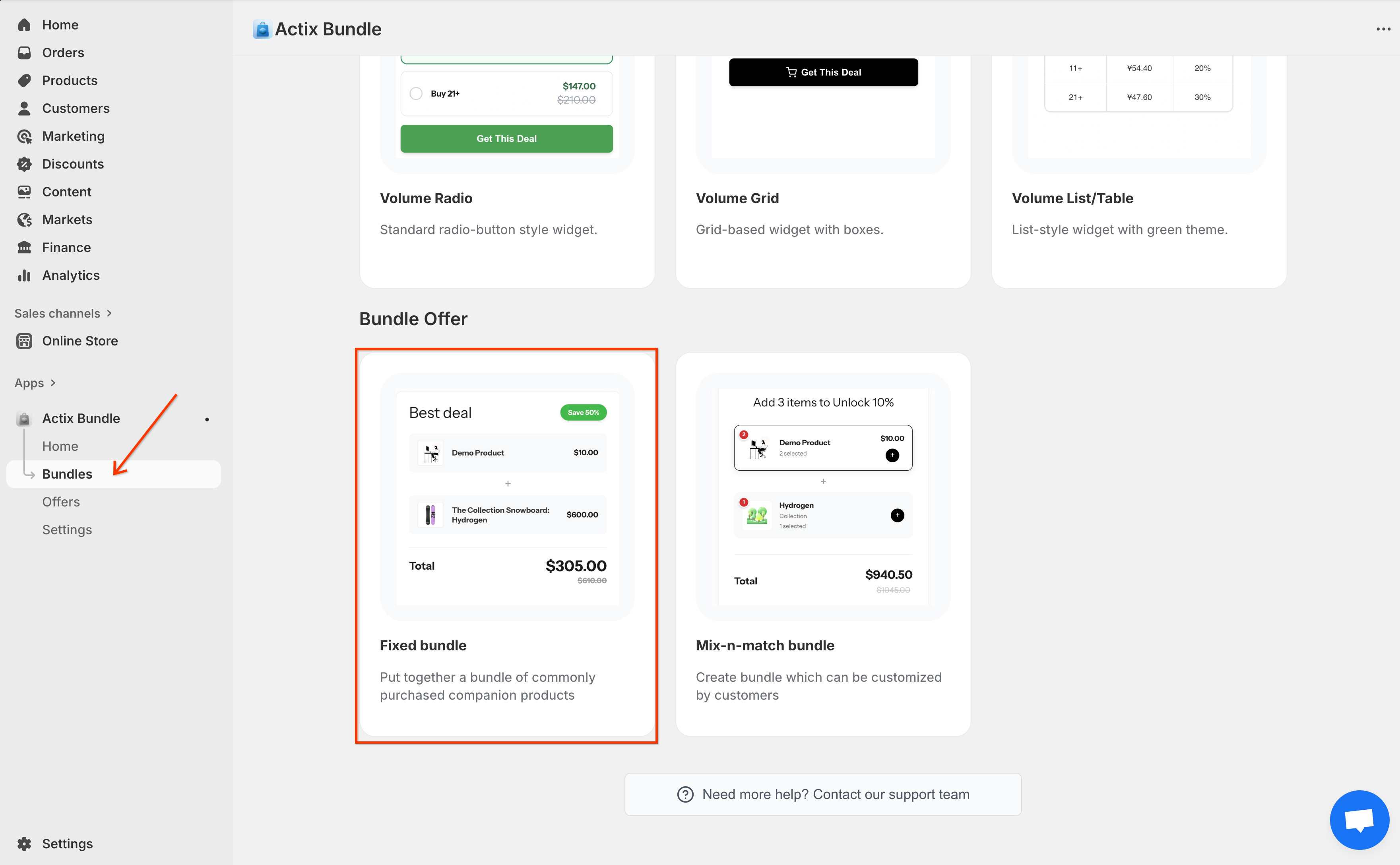
Step 2: Select Fixed Bundle
Go to the Actix Bundle dashboard, click on the Bundles tab on the left sidebar and select the Fixed Bundle option.
Step 3: Configure General Settings
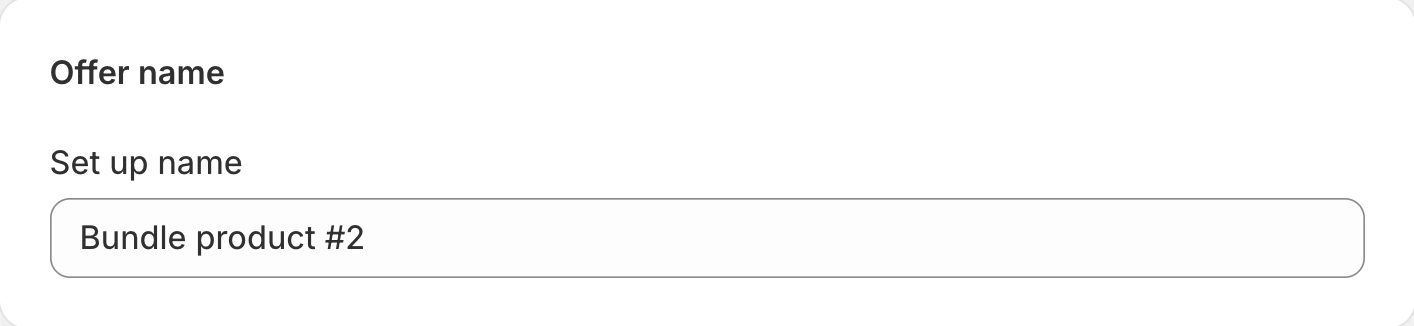
Offer Name: Enter a name for your bundle offer. This is for internal reference.
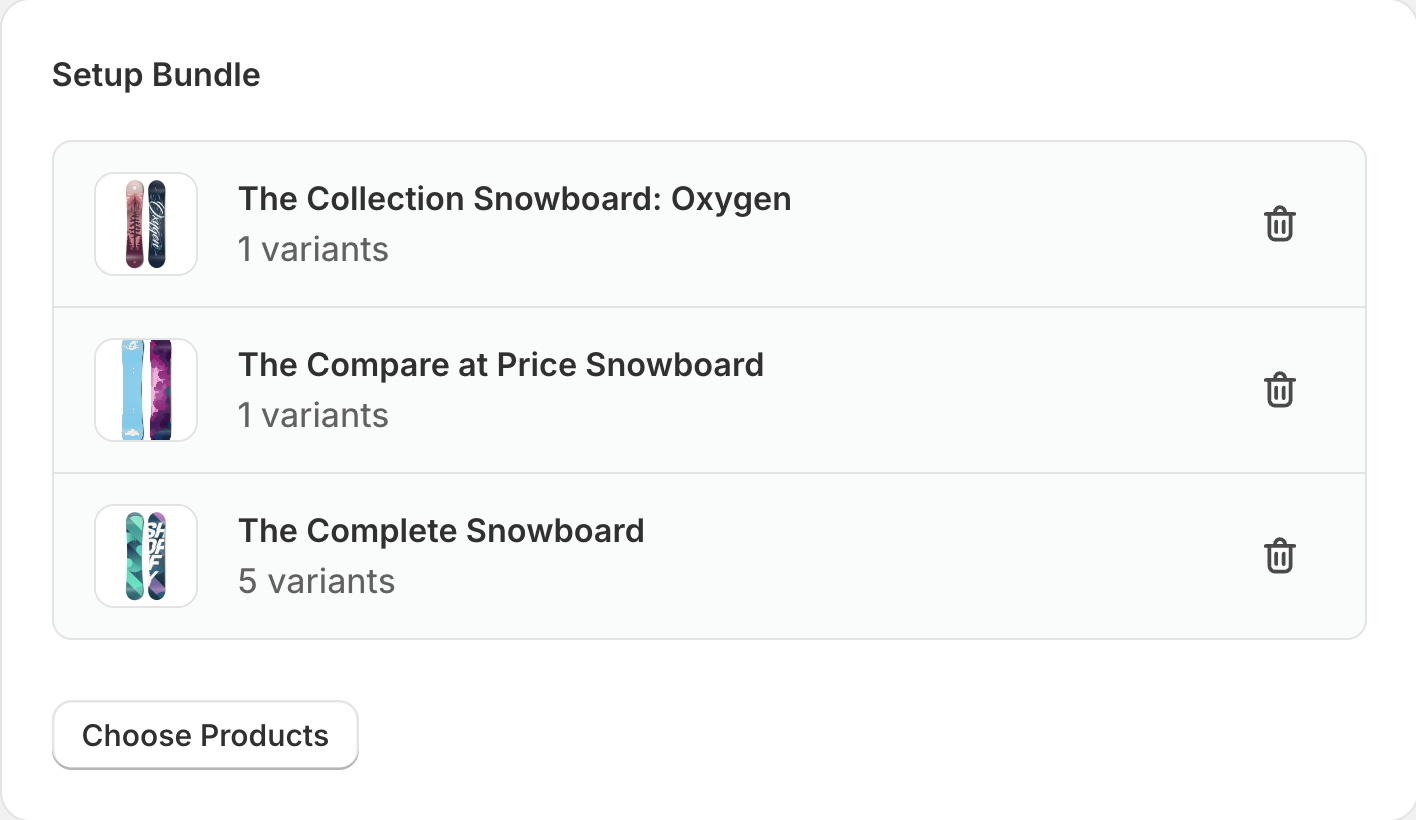
Step 4: Choose Products
Click on Choose Products to select the items you want to include in this fixed bundle.
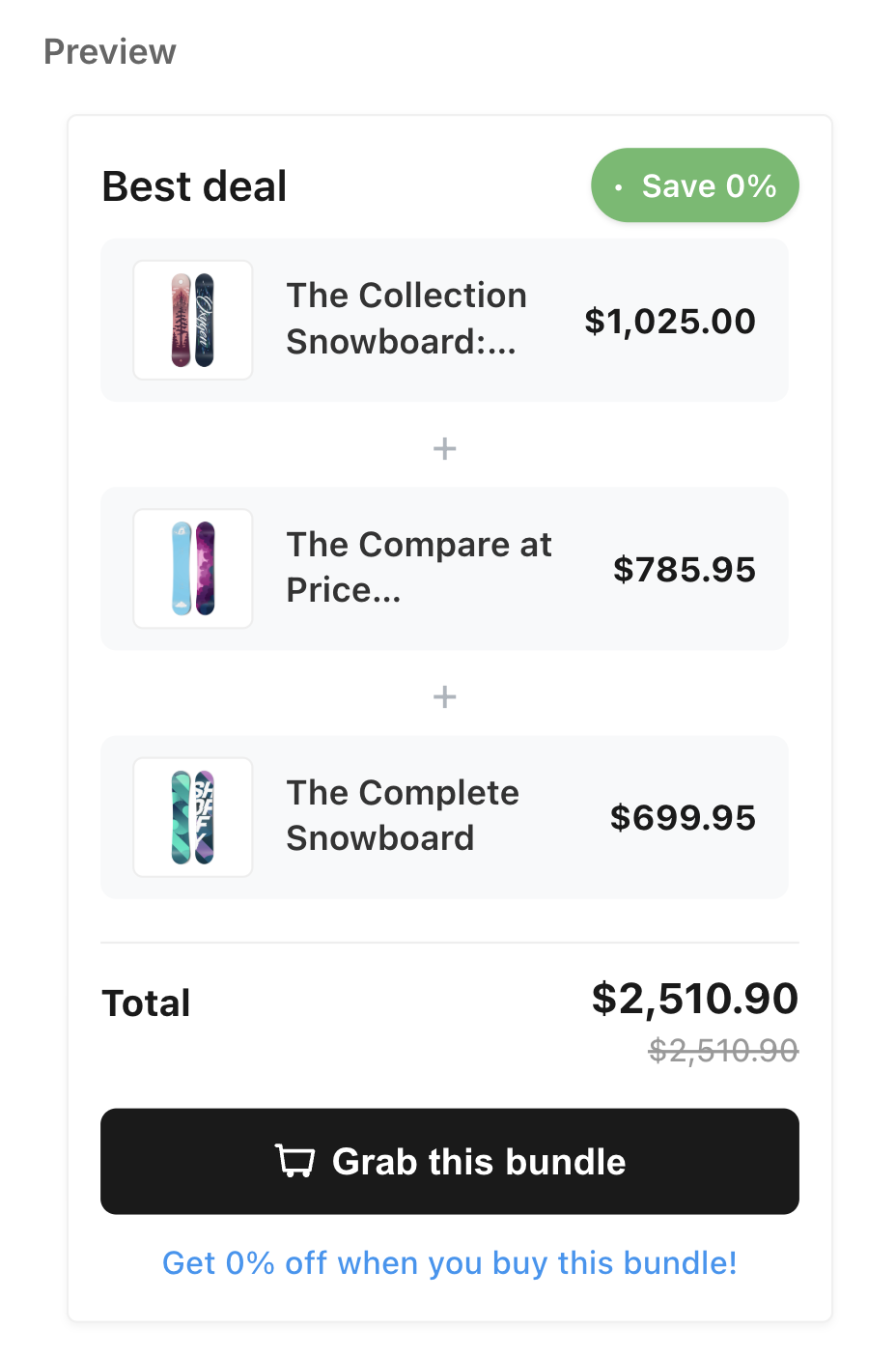
Step 5: Bundle Details
Configure the public-facing details of your bundle product.
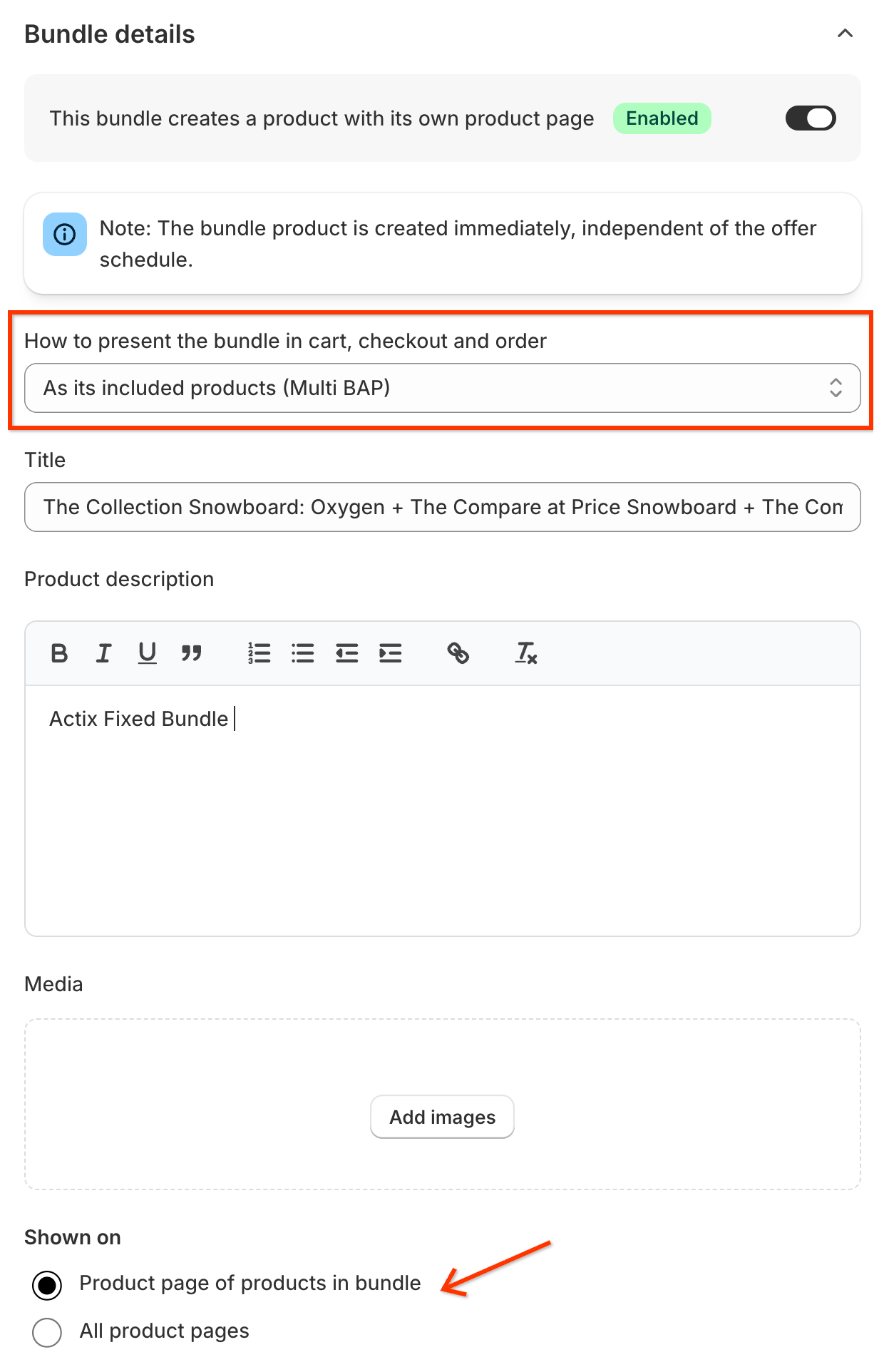
- Create Product Page: Toggle ON to automatically create a dedicated product page in Shopify for this bundle.
- Bundle Presentation: (Visible if Product Page is ON)
- Multi BAP: Components are added to the cart as individual items.
- Single BAP: The bundle appears as a single line item in the cart.
- Bundle Presentation: (Visible if Product Page is ON)
- Title: The public title of the bundle product.
- Product description: A description for the bundle product page.
- Media: Upload or select images for the bundle product.
- Shown on: Choose where this bundle widget should be displayed (e.g., on product pages of included items).
Step 6: Applied Customers
Control who is eligible for this bundle.
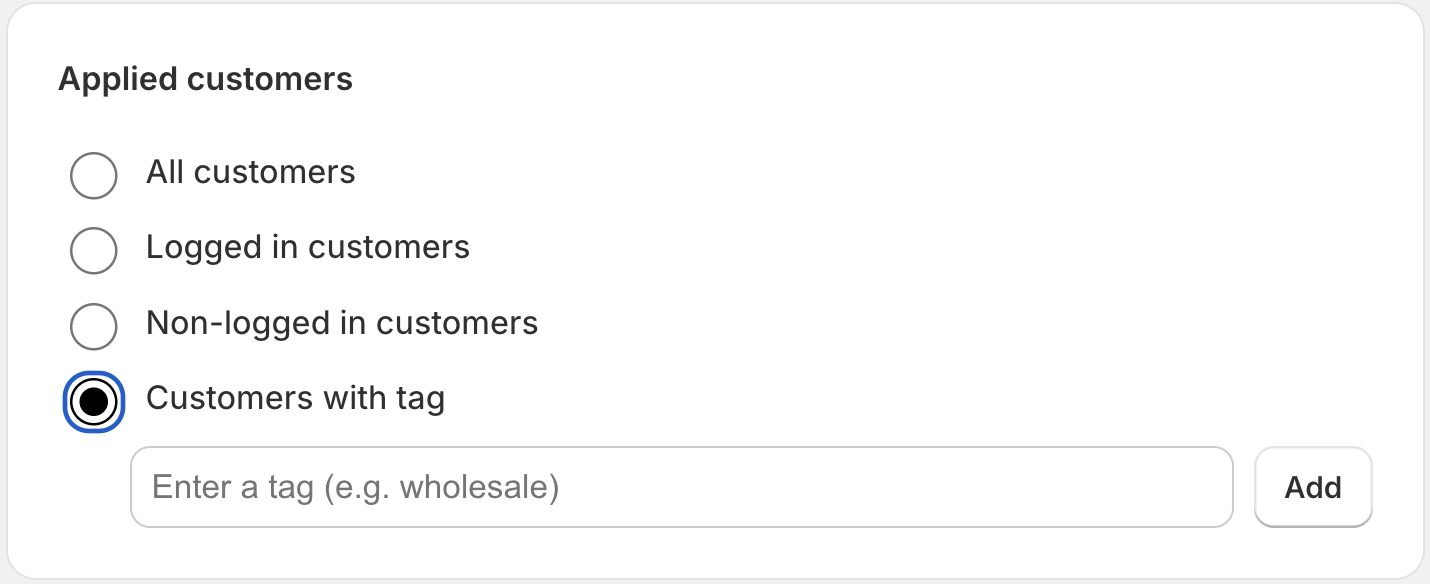
- All customers: Available to everyone.
- Logged in customers: Only for signed-in accounts.
- Non-logged in customers: Only for guest visitors.
- Customers with tag: Restricted to customers with specific profile tags.
Step 7: Discount Settings
Set the discount for buying this bundle.
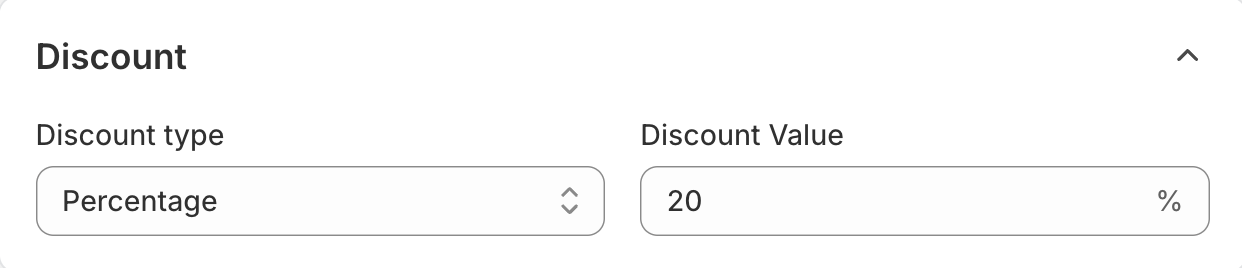
- Discount type: Percentage (%) or Fixed Amount ($).
- Discount Value: The numerical value of the discount.
Step 8: Manage Combinations
Control how this bundle interacts with other discounts.
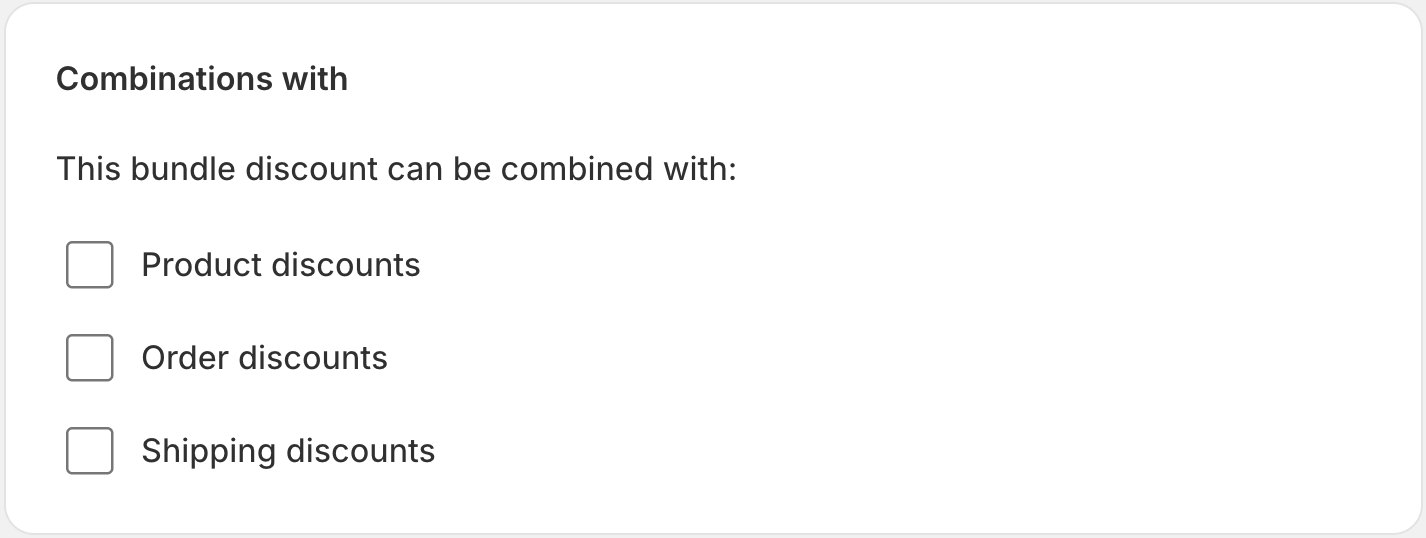
- Order Discounts: Allow combining with order-level coupons.
- Product Discounts: Stack with other product-level discounts.
- Shipping Discounts: Apply even if shipping discounts are present.
Step 9: Schedule Active Dates
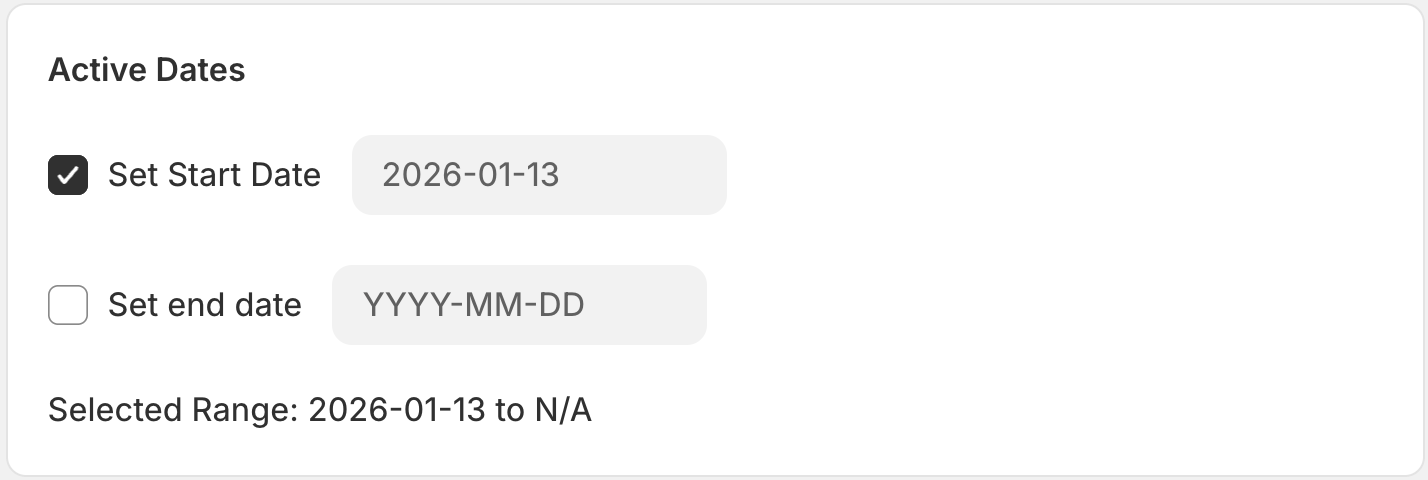
- Start Date: When the bundle becomes available.
- End Date: (Optional) When the bundle expires automatically.
Step 10: Review Summary
Manage status and language settings.
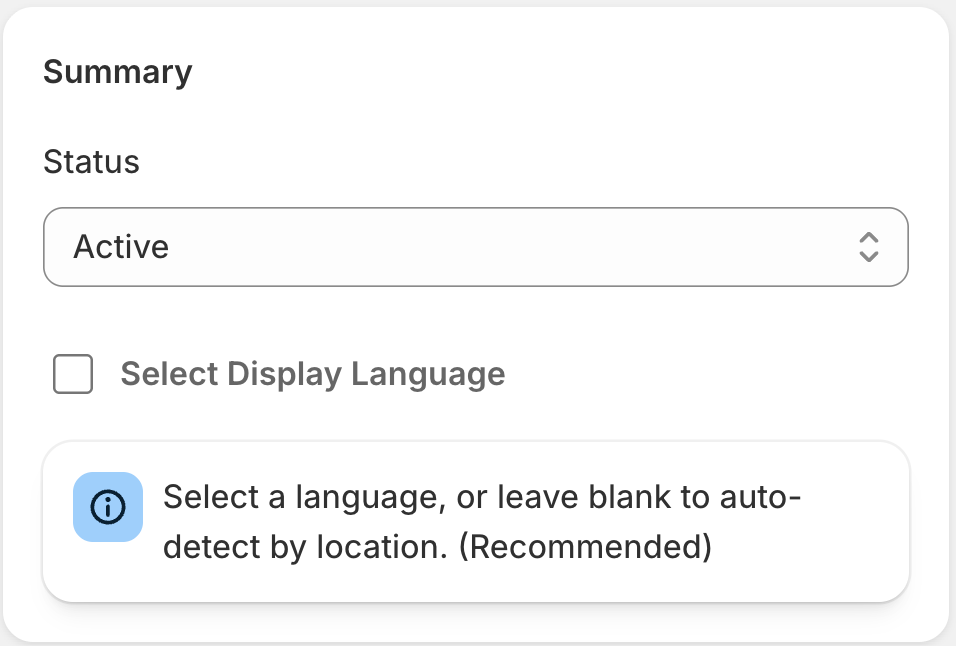
- Status: Draft (inactive) or Active (live).
- Select Display Language: The language for the bundle widget (leave blank for auto-detect).
Step 11: Save and Publish
Click the Save button to create and publish your Fixed Bundle.
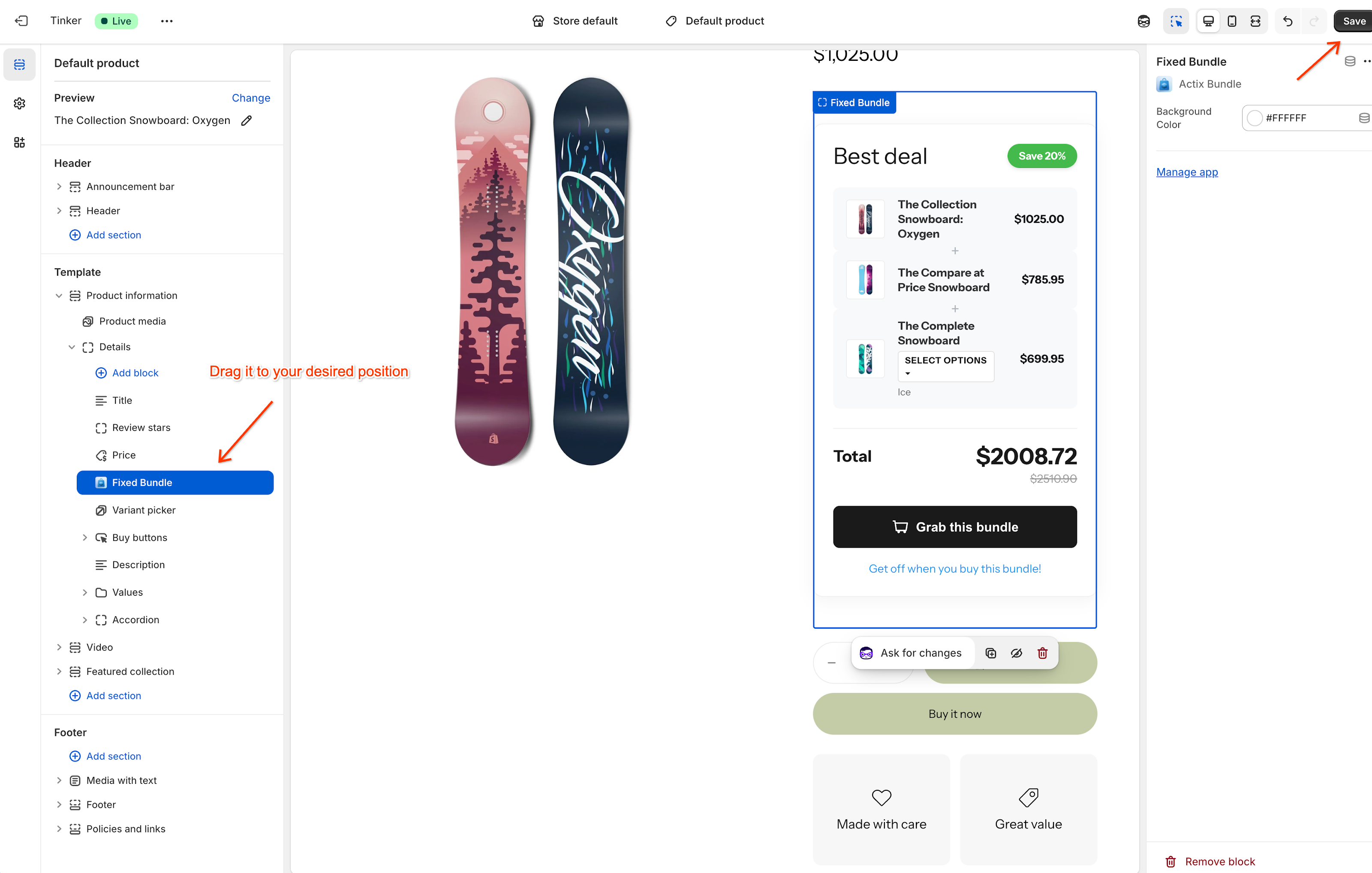
Step 12: Add Widget to Storefront
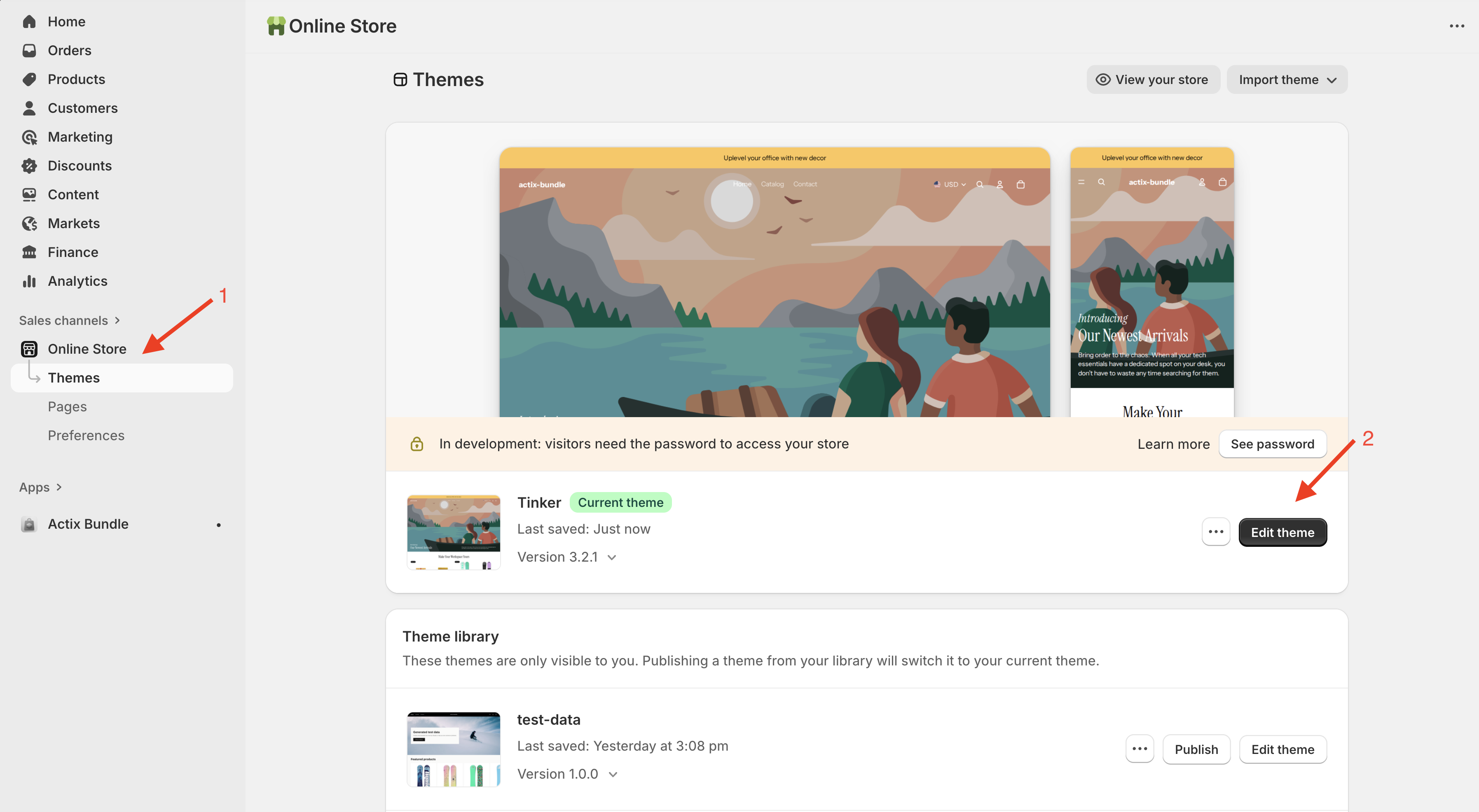
To display the Fixed Bundle widget on your product pages, you need to add it via the Shopify Theme Editor.
- Open Theme Editor: Click on the Go to theme editor button (or navigate to Online Store > Themes > Edit Theme).
- Add Block: In the theme editor, go to the Product information section and click Add block. Select Actix Bundle from the list.
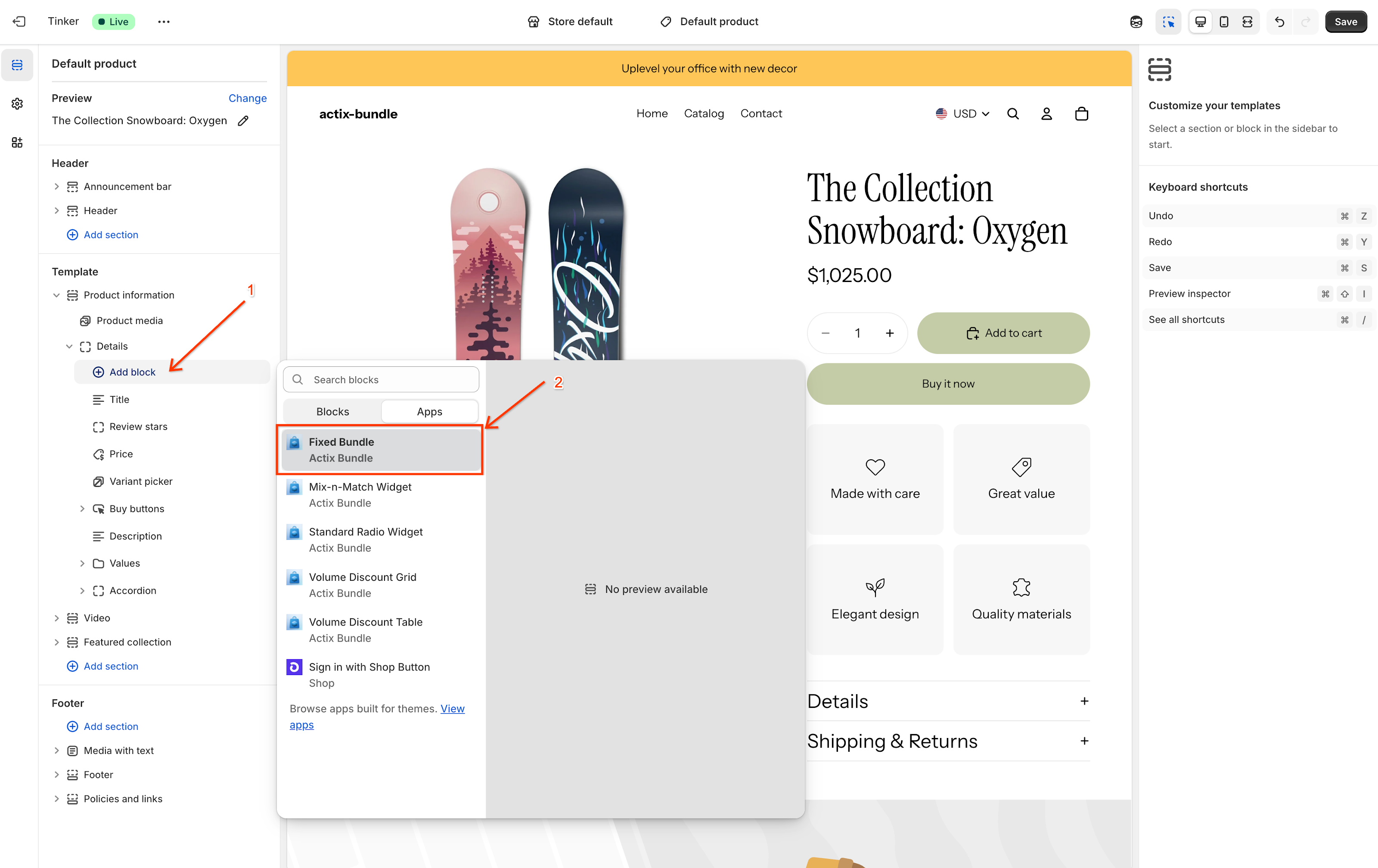
- Position Widget: Drag the Actix Bundle block to your desired location (e.g., above the Buy buttons).
- Save: Click Save in the top right corner to publish the changes.