Mix & Match Bundles
Mix & Match Bundles allow customers to build their own bundle by choosing products from specific sections. This is ideal for "Build Your Own Box" or custom kit offers.
Step 1: Pre-requisites
Before you proceed, ensure you have installed the app and enabled the App Embed. For detailed instructions, refer to the Getting Started guide.
Note: App Embed must be enabled for bundles to appear on your store.
Step 2: Select Mix & Match Bundle
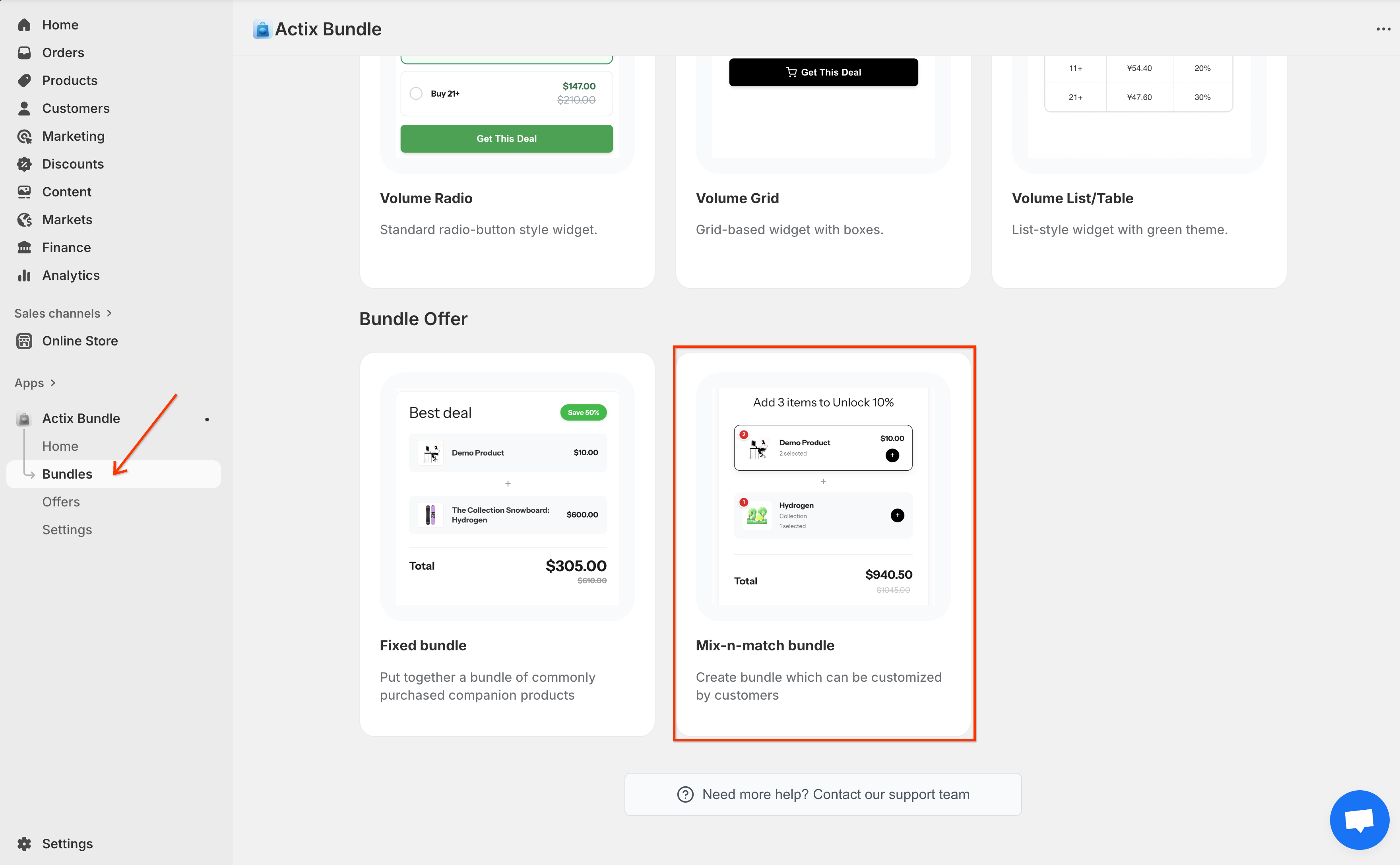
Go to the Actix Bundle dashboard, click on the Bundles tab on the left sidebar and select the Mix-n-match bundle option.
Step 3: General Settings
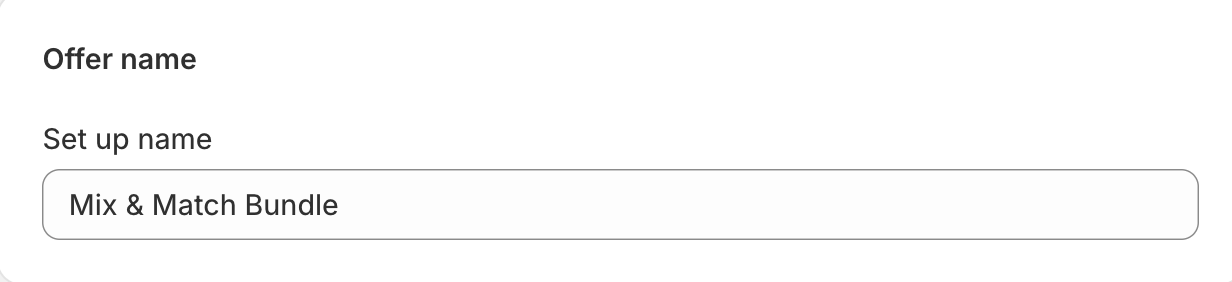
Offer Name: Enter a name for your bundle offer (internal use).
Step 4: Setup Mix & Match Bundle
Define the structure and rules of your bundle builder.
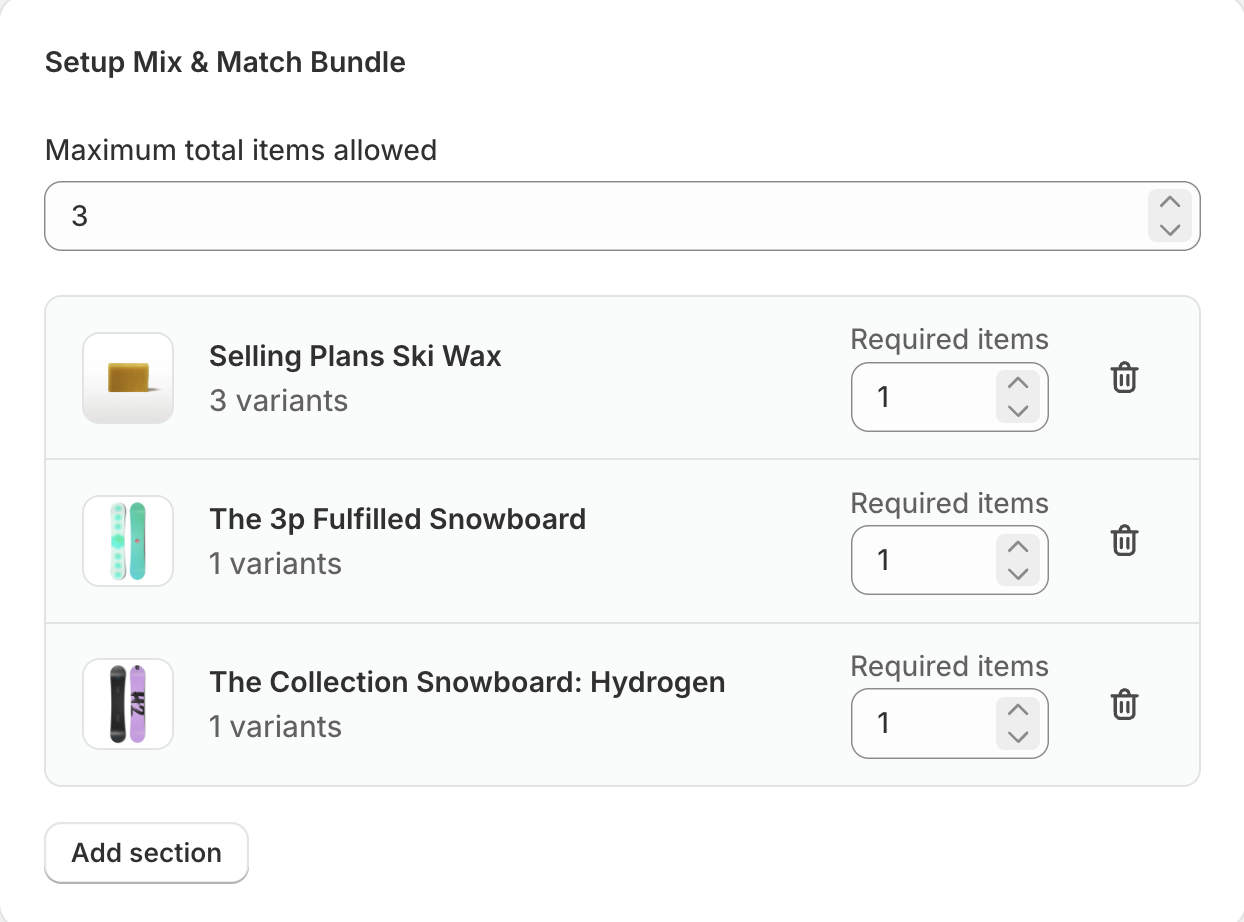
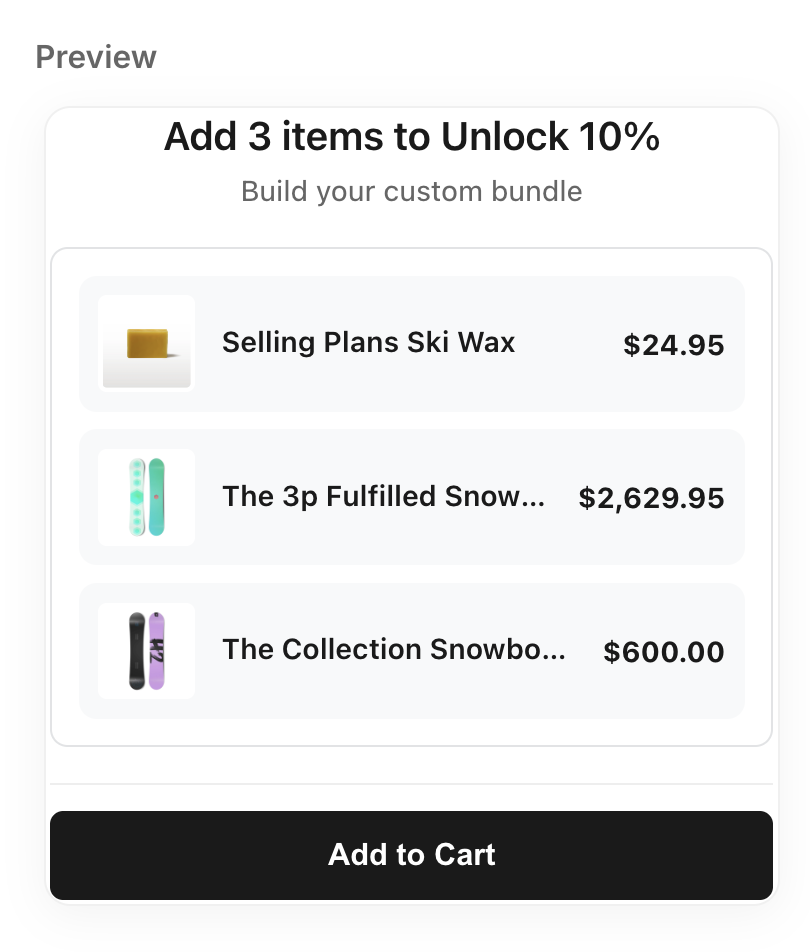
- Maximum total items allowed: Set a limit on the total number of items a customer can select across all sections.
- Set up section(s): Create the selection steps for the customer.
- Add section: Create a new step (e.g., "Step 1: Choose a Top").
- Select Products/Collections: Choose which products are available in this section.
- Required items: Define how many items must be selected from this section.
Step 5: Bundle Details
Configure the product page details for your bundle.
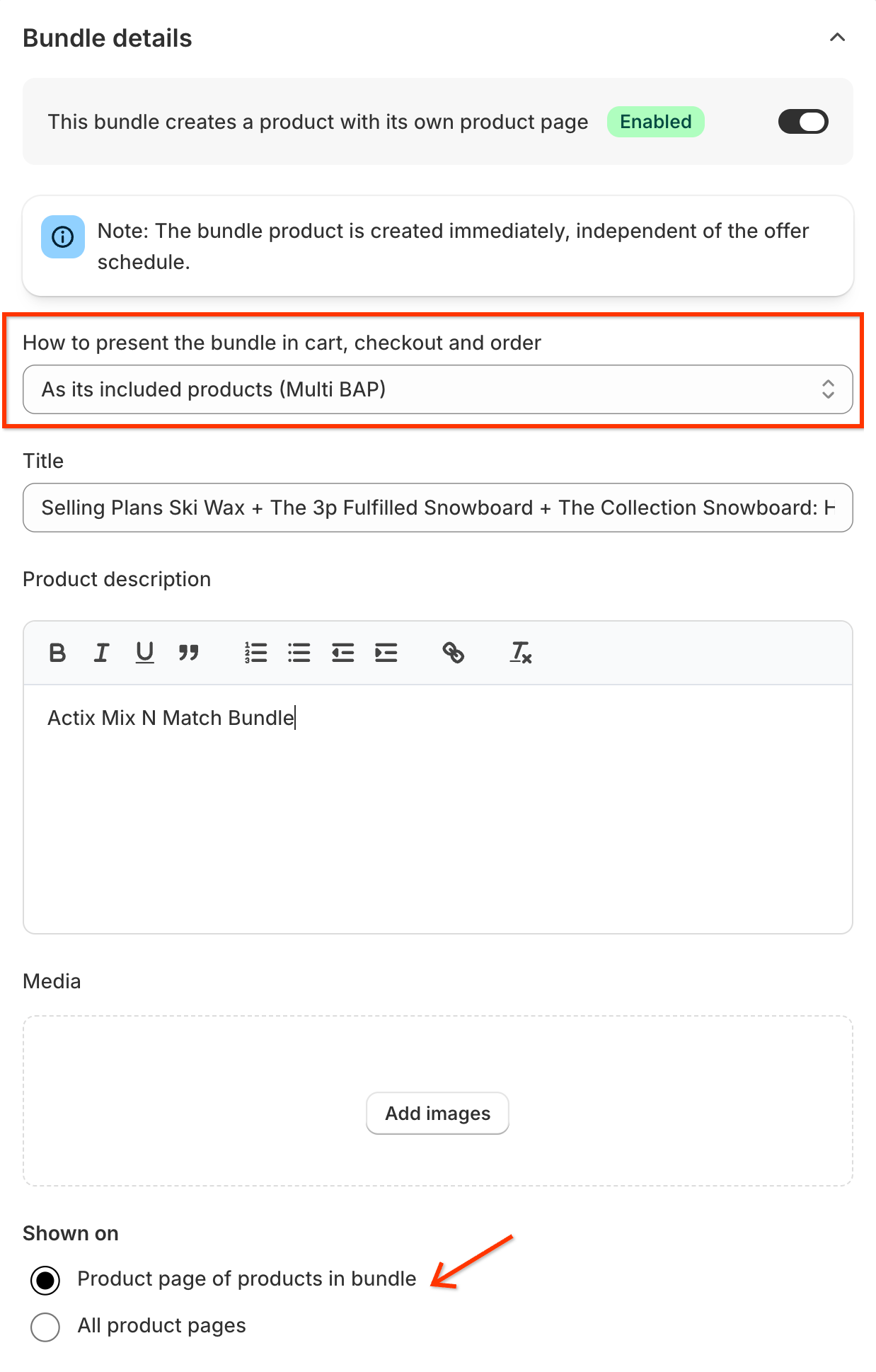
- Create Product Page: Toggle ON to create a dedicated page for this builder.
- Bundle Presentation: (Visible if Product Page is ON)
- Multi BAP: Components are added to the cart individually.
- Single BAP: The bundle appears as a single item in the cart.
- Bundle Presentation: (Visible if Product Page is ON)
- Title: Public title of the bundle.
- Description: Public description.
- Media: Associated images.
- Shown on: (If Product Page is OFF) Choose where to display the widget.
Step 6: Applied Customers
Control who is eligible for this bundle.
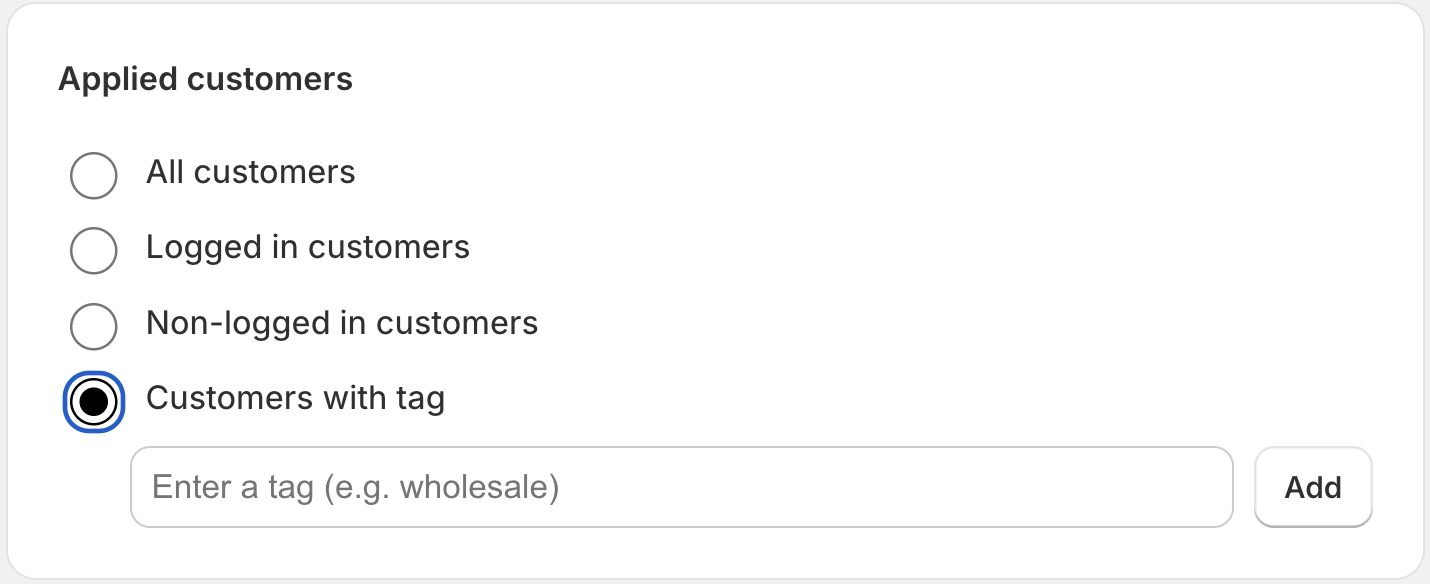
- All customers: Available to everyone.
- Logged in customers: Only for signed-in accounts.
- Non-logged in customers: Only for guest visitors.
- Customers with tag: Restricted to customers with specific profile tags.
Step 7: Discount Settings
Configure the reward for building the bundle.
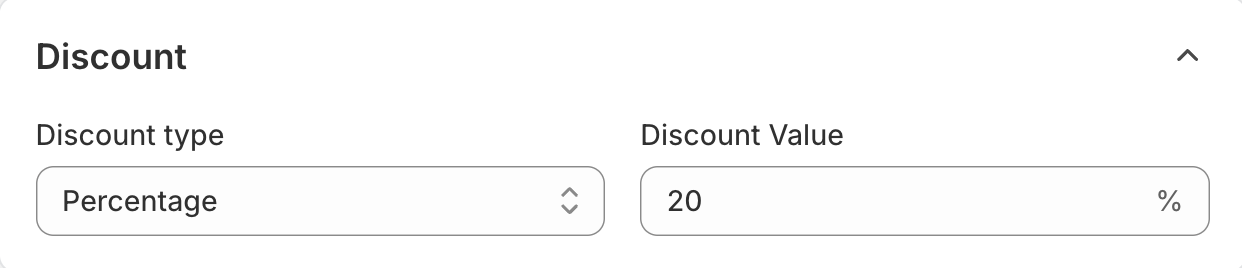
- Discount type: Percentage (%), Fixed Amount ($), or Fixed Price (set total price).
- Discount Value: The value of the discount.
Step 8: Manage Combinations
Control how this bundle interacts with other discounts.
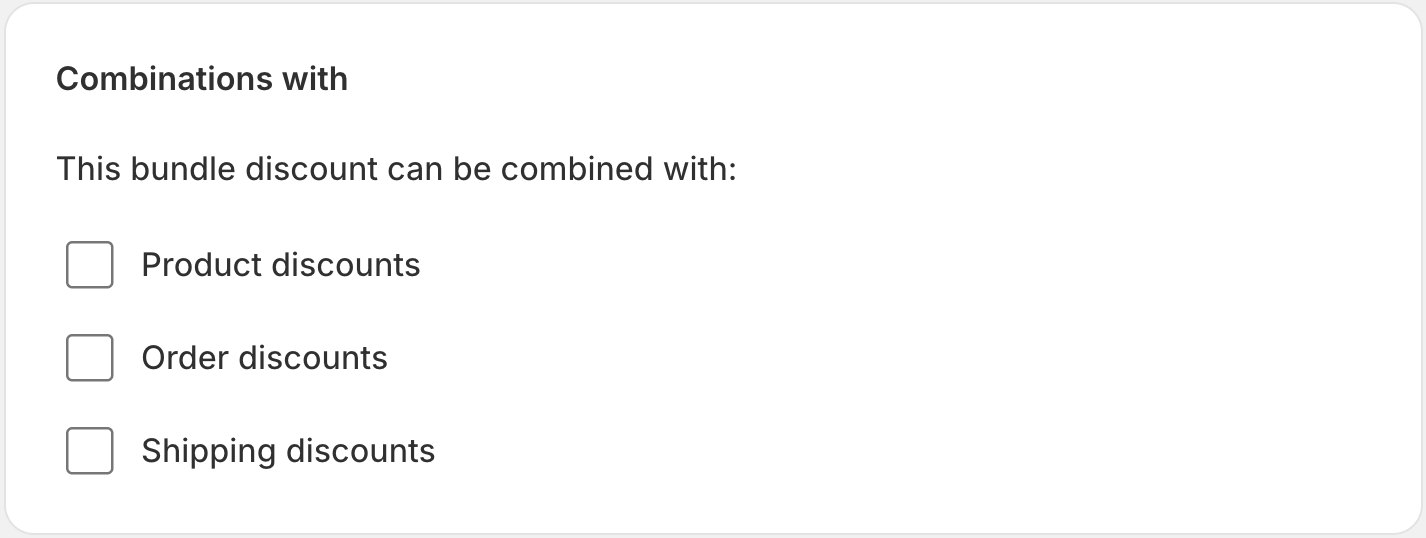
- Order Discounts: Allow combining with order-level coupons.
- Product Discounts: Stack with other product-level discounts.
- Shipping Discounts: Apply even if shipping discounts are present.
Step 9: Schedule Active Dates
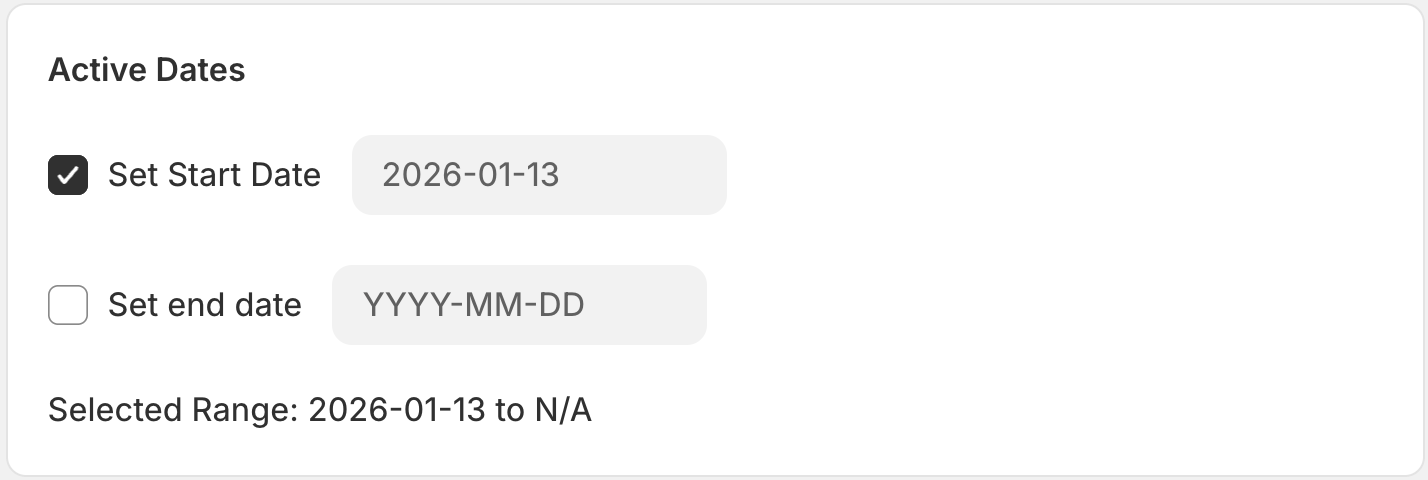
- Start Date: When the bundle becomes available.
- End Date: (Optional) When the bundle expires automatically.
Step 10: Review Summary
Manage status and language settings.
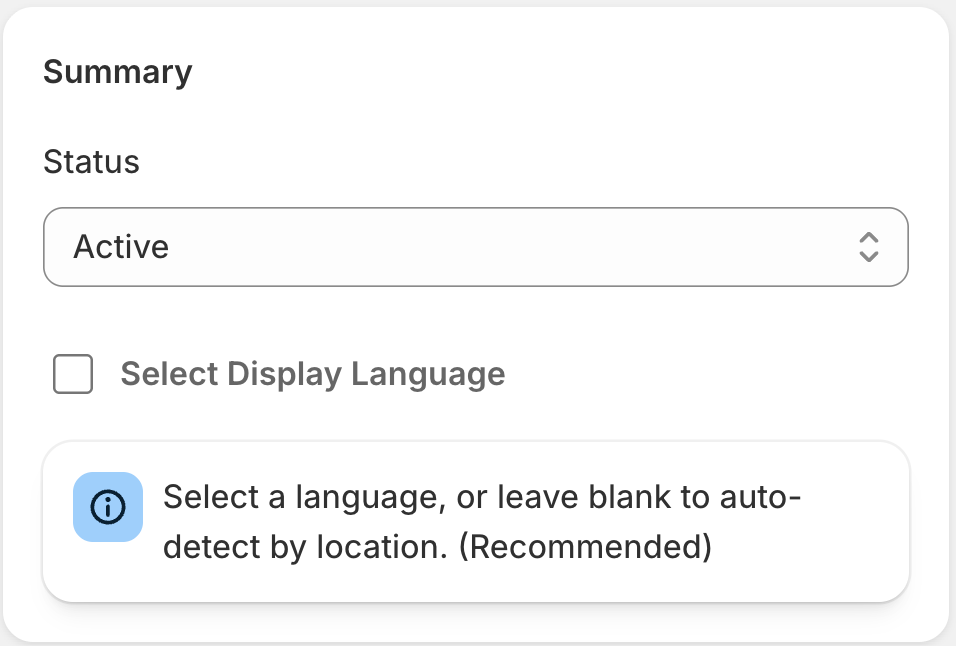
- Status: Draft (inactive) or Active (live).
- Select Display Language: The language for the bundle widget.
Step 11: Save and Publish
Click the Save button to create and publish your Mix & Match Bundle.
Step 12: Add Widget to Storefront
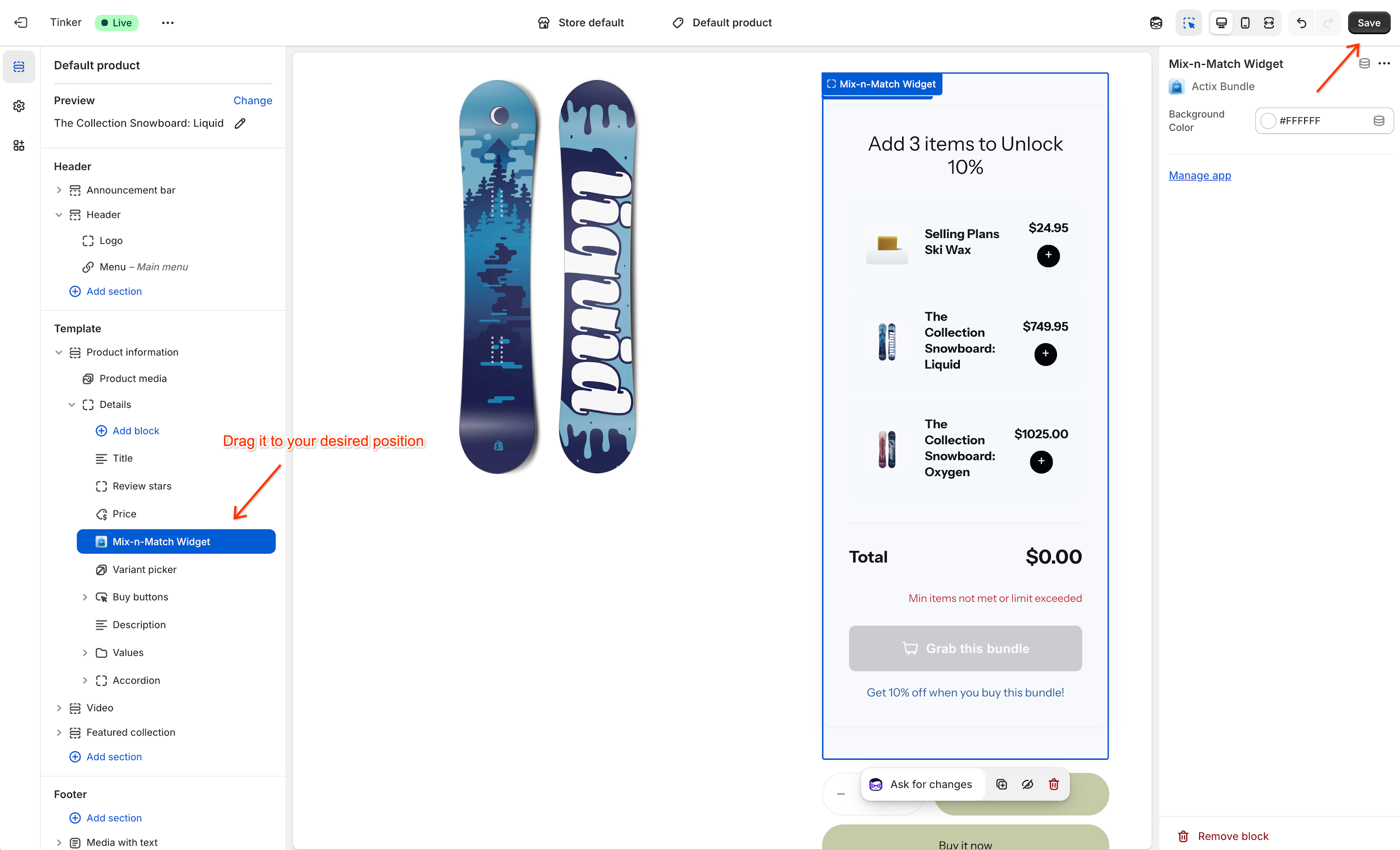
To display the Mix & Match Bundle widget on your product pages, you need to add it via the Shopify Theme Editor.
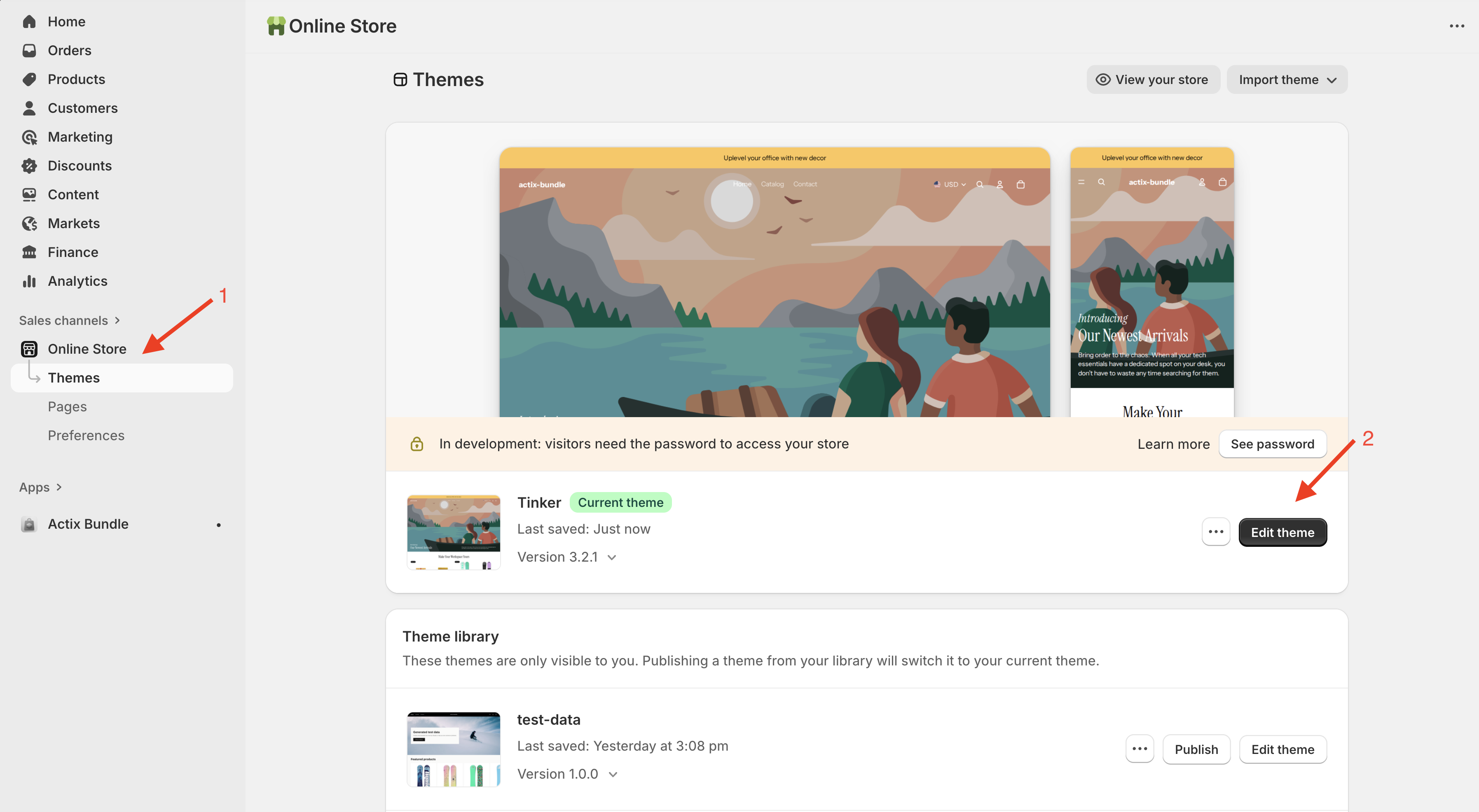
- Open Theme Editor: Click on the Go to theme editor button (or navigate to Online Store > Themes > Edit Theme).
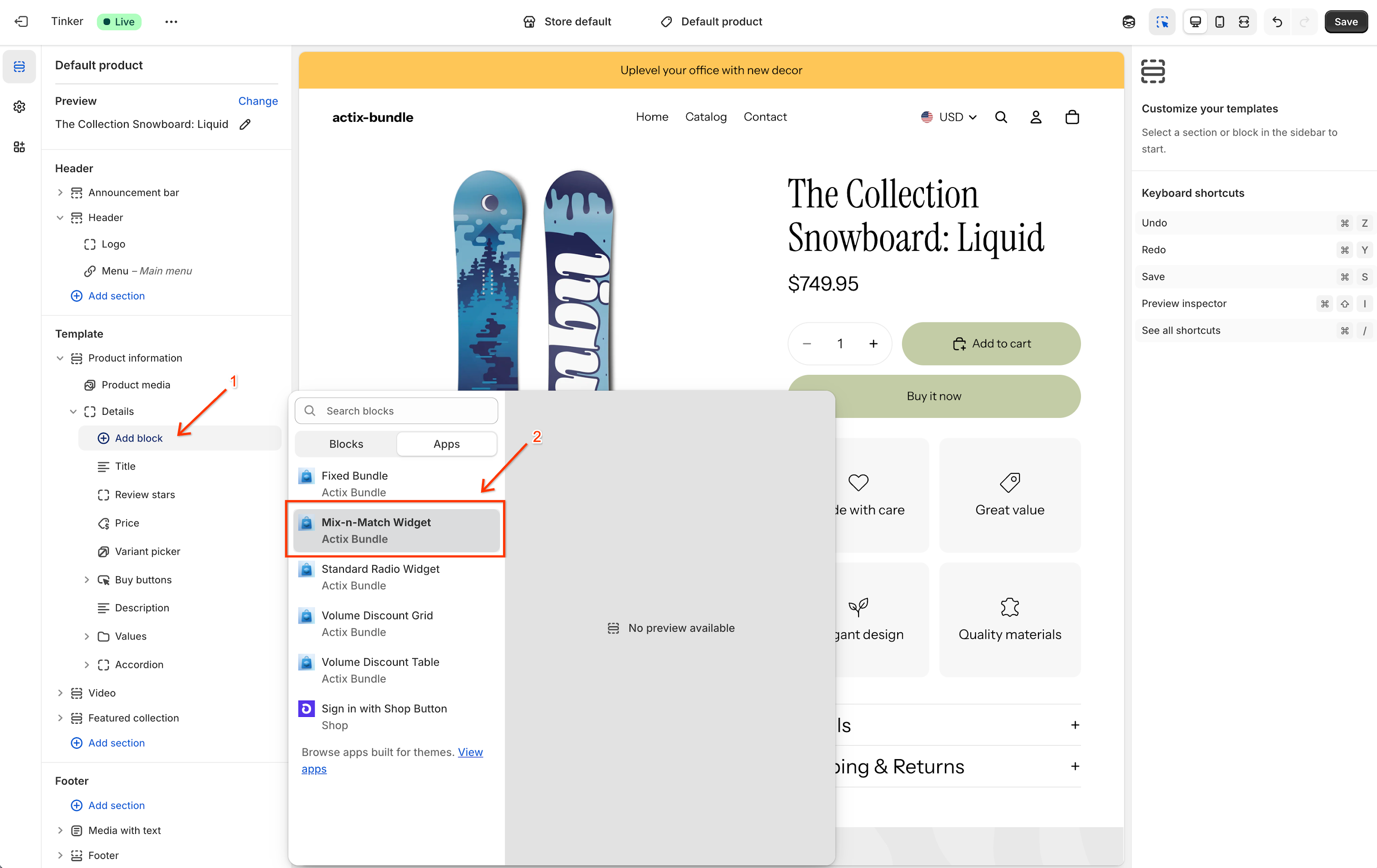
- Add Block: In the theme editor, go to the Product information section and click Add block. Select Actix Bundle from the list.
- Position Widget: Drag the Actix Bundle block to your desired location (e.g., above the Buy buttons).
- Save: Click Save in the top right corner to publish the changes.